

Table of Contents
Image Converter
Image conversion shouldn't require a manual. Whether you need to open a photo from your iPhone, prepare a graphic for a website, or simply make a file compatible with an application, changing an image's format is a fundamental digital task. The right online free image converter turns a potential headache into a two-second job, and that's the experience we've built at MiniToolsPro. This hub is your command center for understanding and performing any image format change, quickly and securely.
The Universal Image Converter for Every Need
An image converter is a tool that changes a file from one image format—like a bulky HEIC or a simple JPG—into another. But not all converters are created equal. The core value of a great converter lies in its ability to balance three things: speed, quality preservation, and simplicity. The MiniToolsPro Image Converter is designed as a universal solution, acting as a single dispatch point for dozens of conversion paths without needing to download software or navigate complex menus. If you need to change a picture's format, this is the smartest place to start.
Your Quick Conversion Dispatch: Common Format Tasks
Most users arrive with a specific problem. You have a file in format A, and you need it in format B. Here's how to navigate the most common scenarios directly.
From Apple Photos to Anywhere: HEIC Conversion
Apple's default HEIC format is efficient for your iPhone storage, but it creates instant compatibility problems on Windows PCs, older software, and most websites. Converting HEIC to JPG is the single most common task we solve. It transforms an unopenable modern photo into a universally compatible image in seconds. If you need a deep dive on this specific workflow, our dedicated HEIC to JPG guide walks you through every nuance, but the universal converter handles it instantly.
Modernize Your Images: Legacy to Next-Gen (WebP/AVIF)
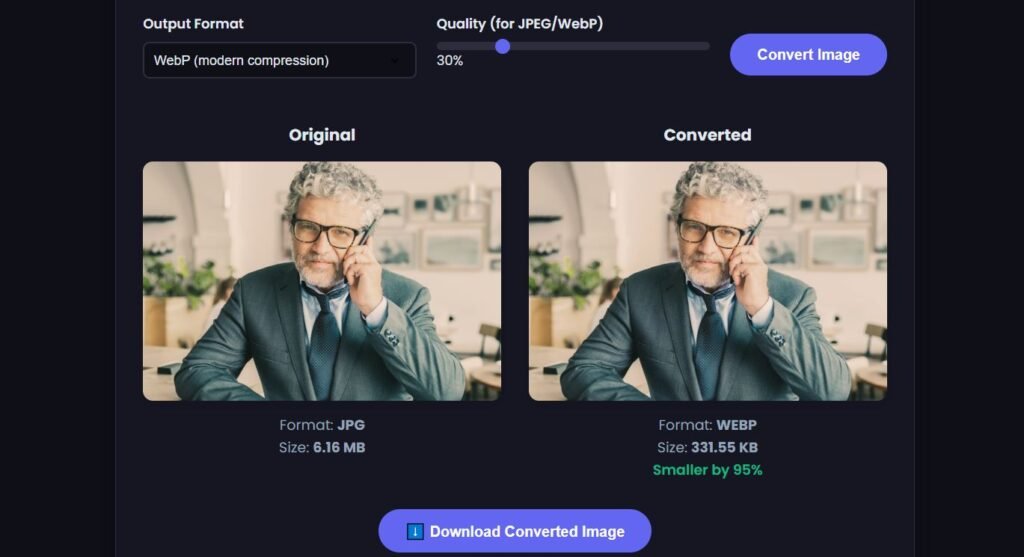
The web is moving to modern, highly-compressed formats like WebP and AVIF to make sites lightning-fast. A conversion tool bridges the gap between old files and new standards. Use the image format converter to turn your existing PNG screenshots or JPG product photos into WebP images for your website, dramatically shrinking file sizes without a visible drop in quality. This is a direct lever for better SEO and user experience.
Prepare for Print or Web: JPG and PNG Mastery
The tug-of-war between JPG and PNG defines many conversion tasks.
- To JPG for Sharing: Turn high-resolution PNGs or TIFFs into compact, easily shareable JPGs for email or social media.
- To PNG for Transparency: Convert your logo from a flat JPG to a PNG to unlock a transparent background, making it overlay perfectly on any design.
For more help deciding between these two, our in-depth JPG vs. PNG comparison can help you choose the right target format.
Choosing Your Output Format: A Practical Guide
If you're unsure which format to convert to, this table cuts through the noise. Match your primary need to the right file type.
| Your Primary Goal | Recommended Output Format | Why? |
|---|---|---|
| Universal Compatibility | JPG | The global standard for photos. Every device and platform can display it. |
| Transparent Background | PNG | The go-to choice for logos, icons, and graphics that need a clean background. |
| Website Performance | WebP or AVIF | Next-gen formats that provide massive file size savings over JPG and PNG. |
| iPhone Photo Sharing | JPG | Converts the proprietary HEIC format into a universal file anyone can open. |
| Professional Printing | TIFF or High-Quality JPG | Preserves maximum detail and color information for physical media. |
If your specific conversion pair isn't listed, don't worry. The MiniToolsPro universal converter supports dozens of source and destination combinations.
Preserving Quality: What Happens During Conversion?
A critical question is always, "Will I lose quality?" The answer depends entirely on the source and destination formats. Image formats fall into two camps: lossy and lossless.
- Lossy Conversion (e.g., PNG to JPG): JPG achieves its small size by permanently discarding some image data. Converting a crisp PNG screenshot to JPG will introduce subtle compression artifacts, often visible around sharp text. The converter manages this by letting you control the quality slider, finding the sweet spot between file size and fidelity. This is conversion plus compression in one step.
- Lossless Rerouting (e.g., JPG to PNG): Converting a JPG to a PNG will not magically restore lost detail or improve quality. A PNG wrapper around a lossy JPG image simply results in a much larger file with identical visual data.
- Next-Gen Nuance (e.g., JPG to WebP): WebP can use either lossy or lossless compression. Converting a JPG to a lossy WebP is a modern standard for the web, maintaining excellent visual quality at a fraction of the original JPG's file size.
A smart image converter doesn't just blindly flip a format switch; it applies the appropriate encoding logic for the chosen output to respect your quality needs.
How to Use the MiniToolsPro Image Converter
Forget complex settings. The workflow is built for immediate action.
- Upload: Drag and drop your source image—or a whole batch of files—directly onto the image converter tool. Your files never leave your own machine, processing locally in the browser for maximum privacy.
- Select Target Format: Choose your desired output from the dropdown menu. The tool intelligently supports JPG, PNG, WebP, HEIC, and more.
- Convert: Click the button. The conversion happens almost instantly client-side. No uploading to a slow, distant server.
- Download: Save your newly converted images individually or as a single organized zip file.
This batch image converter workflow is designed for pros who need efficiency and casual users who just need a quick fix.
Why Choose an Online Converter? Privacy and Performance
Modern online tools have evolved. The key advantage of the MiniToolsPro converter isn't just that it's free; it's that it's built on a privacy-first, client-side architecture. Unlike server-based tools, your private photos are never sent across the web to an unknown location. The conversion engine runs right in your browser tab. This makes it incredibly fast for large batches and secures your sensitive documents or personal photographs from potential data harvesting. You get the power of desktop software without the security risks or the installation burden.
Need to convert an image now? The MiniToolsPro Image Converter is the direct path from your current file to the format you actually need. It unifies speed, quality control, and genuine privacy into one simple workflow.
FAQ
Can I convert multiple images at once with this converter?
Yes. The MiniToolsPro Image Converter supports batch processing. You can upload an entire folder of images, select a single output format, and convert them all in one pass. The processed files are then provided as a single compressed folder for easy download.
Is it safe to convert sensitive documents using an online tool?
It is with this one. Our converter uses client-side processing. The actual image data is transformed by your device's processor and RAM, meaning your files are never uploaded to an external server. This architecture is inherently more private than server-side tools.
Will converting a photo change its resolution or dimensions?
No, a pure image format conversion does not change the image's dimensions or resolution. The number of pixels remains identical; only the file type and its method of encoding that pixel data change. Resizing is a different tool and process.
Why would I convert a JPG to a WebP?
The primary reason is website performance. A WebP version of a JPG photo is often 25-35% smaller in file size with negligible visual quality loss. This leads to faster page loads, improved SEO, and a better experience for your visitors.
What is the best format to convert an iPhone photo to?
For maximum compatibility when sharing with anyone, JPG is the best output format. It transforms the efficient but proprietary HEIC file from your iPhone into a universal standard that every device, from Windows PCs to Android phones, can open and display natively.
Share this article 👇


0 Comments